How to Export ChatGPT Conversations, One or Hundreds
To see how to export ChatGPT conversations you choose, request your data zip in Settings, Data controls, Export. When it arrives, open it here, search the titles, and tick the chats you want. Then download them as Markdown files, one per chat, or switch to PDF, Word, HTML or text.
By The Chatsheaf team (Product and testing). Last updated .
ZIP, JSON, TXT or MD. The zip is opened on your device; photos in it are never uploaded.
How to export ChatGPT conversations, step by step
- In ChatGPT, open Settings, then Data controls, and select Export followed by Confirm export.
- Download the zip from the email or SMS before the link expires after 24 hours.
- Drop the zip here. The list shows every conversation with its title, date and message count.
- Type a word into the search box to filter titles, then tick the conversations you want.
- Pick Markdown or another format and download. Several chats arrive together in one .zip.
The first 3 runs each day are free. After that, see the pricing page for packs and plans, or read how we test the tool.
How to export ChatGPT conversations tested with a real input
First, we ran our own sample export through this exact tool. The sample follows the real export layout, with chats we wrote ourselves. So the numbers below come straight from that run.
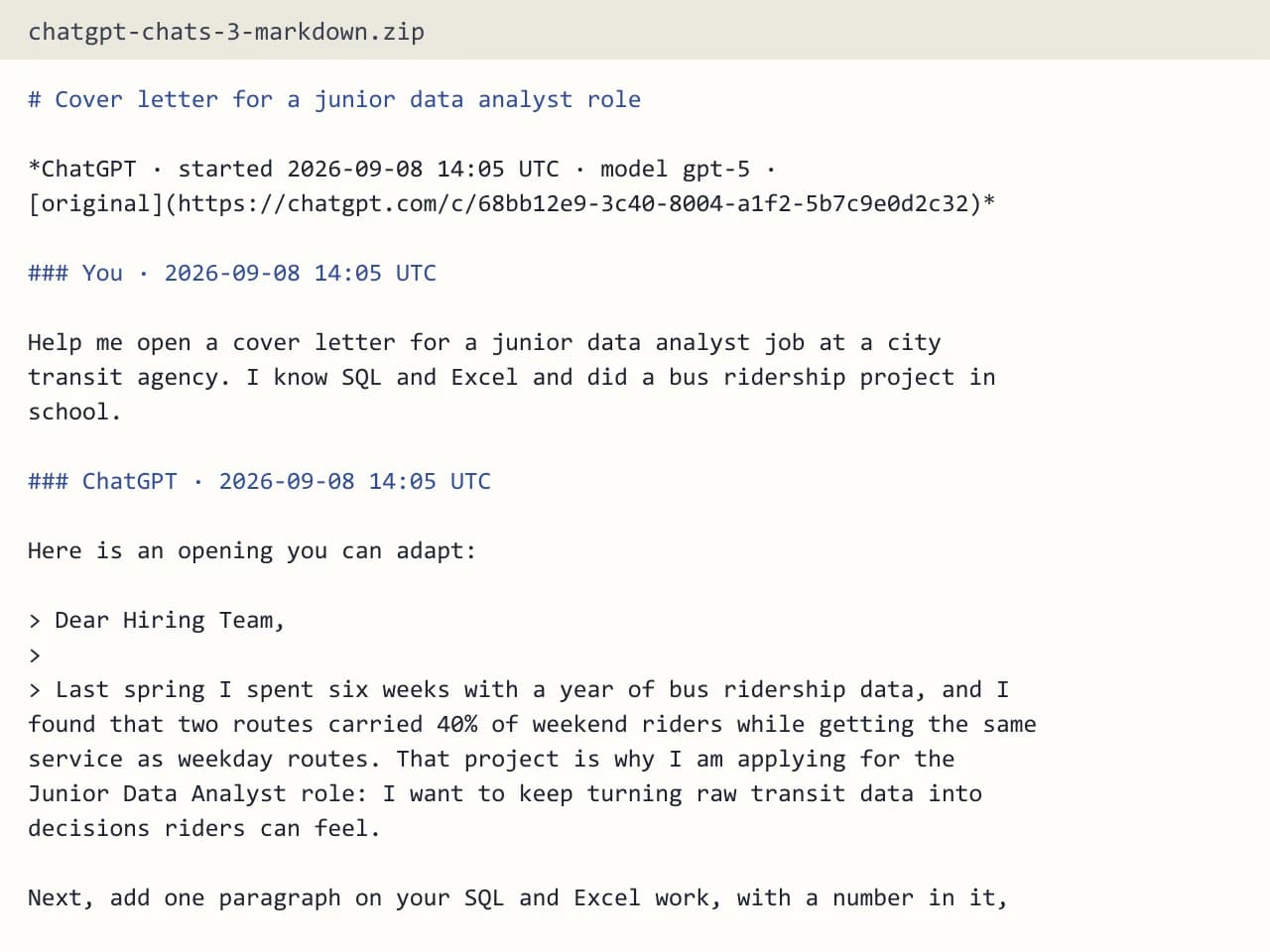
- Test input
- chatgpt-conversations.json
- Output
- chatgpt-chats-3-markdown.zip (Markdown (.md))
- Conversations
- 3
- Messages
- 8
- Output size
- 2 KB
- Processing time
- 0.0 s
How we test: the sample files hold ChatGPT and Claude chats with tables, code and lists, and we open every output by hand. More on the about page.
How to export ChatGPT conversations without exporting everything
ChatGPT has no button to save a single chat as a file. Its export always covers the whole account. So the trick is to accept the full zip from OpenAI and then do the picking on your side.
That is exactly what the picker on this page does. After you drop the zip, you see a list of every conversation with its title, date and number of messages. You can search the titles, tick five chats about one project, and leave the rest alone. As a result, a history of thousands of chats turns into the handful you actually wanted.
A worked example: saving one project's chats
Say you spent a month planning a trip with ChatGPT, spread over a dozen separate chats. First, type "trip" or the city name into the search box. Next, tick the matching chats and choose Markdown. You then get a .zip with one .md file per conversation, each with its own title, timestamps and messages in order.
If you would rather have a single document to share with a travel partner, switch the format to PDF or Word. In that case, every chat lands in one file, and each conversation starts on a fresh page in the PDF.
What happens to the chats you do not tick
Nothing leaves your browser except your selection. The zip opens locally, and only conversations.json is read. Photos, audio and other files inside the archive are skipped and never uploaded.
Then only the ticked chats travel to the server as a small JSON file. The server reads them in memory, builds your download and forgets it. It stores just a log row with the format, the count and the time, nothing else.
Limits worth knowing before a big batch
One upload can carry up to 25 MB of selected chats. Because only your picks are sent, the full zip can be larger than that. In addition, a single export handles up to 5,000 conversations, while one PDF or Word file holds up to 300 of them.
A free run keeps the 10 newest chats from your selection and adds a short footer line to PDF, Word and HTML files. Instead, a paid credit covers one full export of everything you ticked with no footer. You get a few free exports each day, and the pricing page has the details.
When this exporter is not the right choice
If you only need one short chat right now, you may not want to wait for the zip at all. In that case, copy the conversation from the browser and use the paste option, which skips the export entirely. Also note that ChatGPT share links do not work here, so paste the chat text instead.
Business and Enterprise workspaces cannot self-export under OpenAI's rules, so members should ask the workspace owner first.
How to export ChatGPT conversations: selection limits
| Limit | Value |
|---|---|
| Selected chats per upload | Up to 25 MB (the full zip can be bigger) |
| Conversations per export | Up to 5,000 |
| Conversations in one PDF or Word file | Up to 300 |
| Free run | The 10 newest of the selected chats |
| Markdown output | One .md per chat, several chats as a .zip |
How to export ChatGPT conversations FAQ
Can I export just one ChatGPT conversation?
Yes. Upload the full zip, tick that one chat, and download it. You can also paste a single chat without any zip.
How do I find a specific chat in a big export?
Use the search box above the list. It filters by title, so a word you remember from the chat name usually finds it fast.
Do the exported files keep code blocks and tables?
Yes. Code blocks, tables, lists and headings carry over, and every message keeps its UTC timestamp.
Are edited answers included?
Only the branch you see in the chat window is kept. Edited or abandoned branches are left out, so each file matches what you remember.
How do I export ChatGPT conversations from a share link?
No, share links are not supported. Open the chat, select all of it, copy, and paste it into the text box instead.