Export ChatGPT to Word as an Editable .docx File
To export ChatGPT to Word, open your ChatGPT export zip on this page, tick the chats you need and pick Word (.docx). You get one document with a heading for every message, so the navigation pane in Word lists them all. Then you can edit, comment on and share the text like any other file.
By The Chatsheaf team (Product and testing). Last updated .
ZIP, JSON, TXT or MD. The zip is opened on your device; photos in it are never uploaded.
How to export ChatGPT to Word, step by step
- Request your data in ChatGPT: Settings, Data controls, then Export under Export data, and confirm.
- Download the zip from the email link within 24 hours.
- Drop the zip on this page and tick the chats you want in the document.
- Pick Word (.docx) under Save as and run the export.
- Open the file in Word and turn on the navigation pane to move between messages.
The first 3 runs each day are free. After that, see the pricing page for packs and plans, or read how we test the tool.
Export ChatGPT to Word tested with a real input
First, we ran our own sample export through this exact tool. The sample follows the real export layout, with chats we wrote ourselves. So the numbers below come straight from that run.
- Test input
- chatgpt-conversations.json
- Output
- chatgpt-chats-3.docx (Word (.docx))
- Conversations
- 3
- Messages
- 8
- Output size
- 14 KB
- Processing time
- 0.1 s
How we test: the sample files hold ChatGPT and Claude chats with tables, code and lists, and we open every output by hand. More on the about page.
Why copy and paste into Word goes wrong
Pasting a chat straight into a blank document seems quick. However, the text often brings odd fonts, stray spacing and bits of the page around it. Code loses its block, tables fall apart and you can no longer tell where one turn ends and the next begins.
That is fine for one short answer, but a long chat takes ages to clean up by hand. Ten chats take a whole afternoon. So it pays to start from the export file, where the structure is already there.
Export ChatGPT to Word with a heading per message
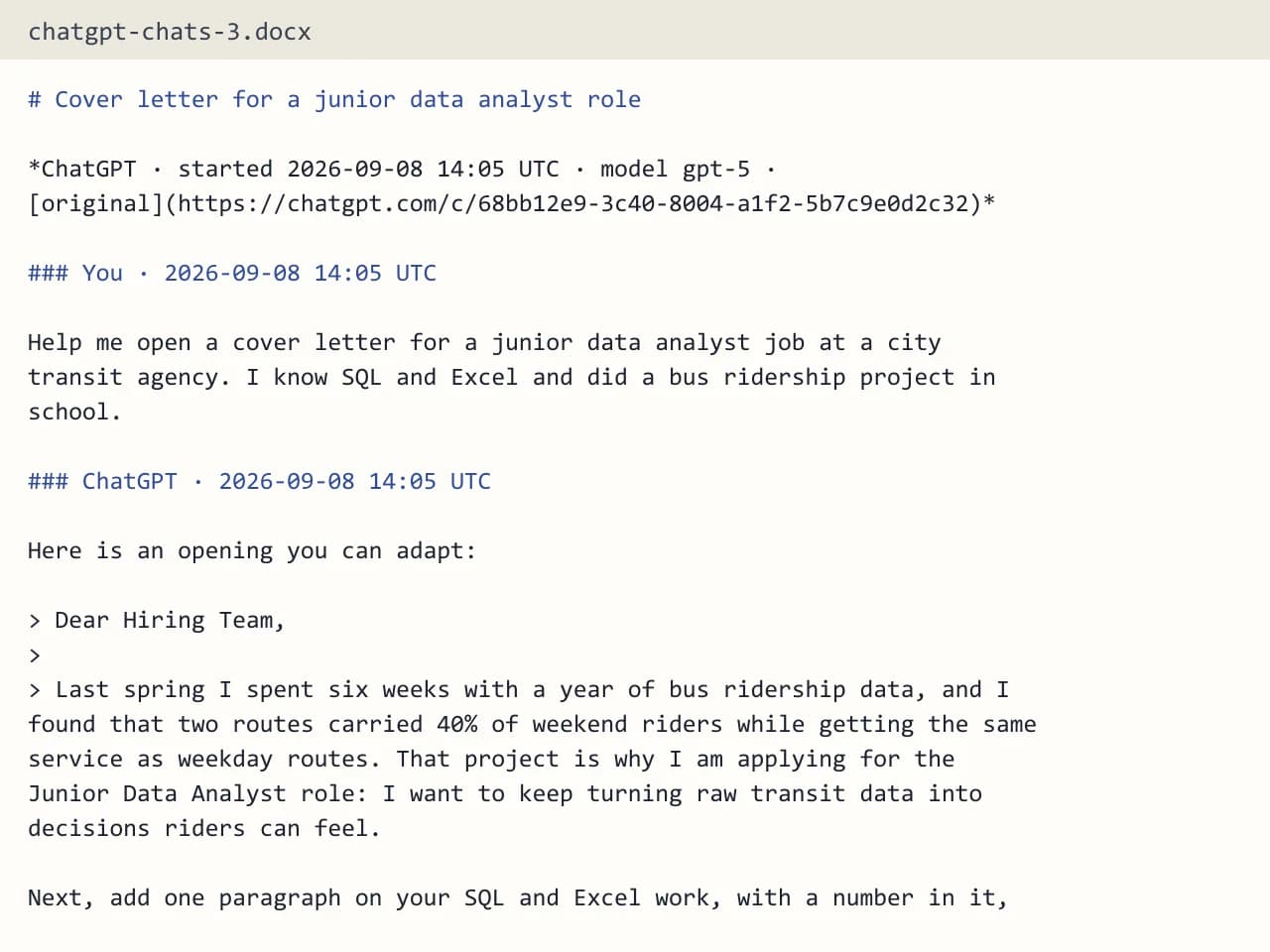
Our exporter builds one .docx file and gives every message its own heading. Because Word reads those headings, the navigation pane shows a clickable outline of the whole chat. You can jump to the fifth answer, or fold a long reply out of the way while you work.
One document holds up to 300 conversations. Each message keeps its time stamp in UTC, and the file also carries the chat title, the model name when the export has it and a link back to the original chat. In addition, code blocks, tables, lists and headings keep their shape.
Edit, comment and reuse the text
Word is the right pick when the chat is a first draft, not a final record. For example, you can turn a brainstorm into a report outline, add comments for a client or cut the useful answers into a project plan. Track changes also works as usual, so a coworker can review your edits.
The .docx format is Open XML, a published standard from Microsoft, so the file is not tied to one app or one year. Still, keep the original export zip as your untouched copy.
Every character stays in the document
Unlike the PDF, a Word file keeps every character. Emoji, Chinese, Japanese and Korean text all stay in place. That makes Word a good choice for chats in several languages.
Images are the one gap. Each one shows as "[Image]" in the text, and the picture itself stays in your original zip. Uploaded files, hidden system messages, tool calls and model reasoning are not part of the document either.
When this exporter is not the right choice
If you only want to read or print the chats, a PDF is simpler and looks the same everywhere. If the chats should become notes you link and search, Markdown or an Obsidian vault fits better than a long document.
Also, Business and Enterprise workspaces cannot export by themselves (OpenAI's rule), and Gemini, Grok, Copilot and DeepSeek exports are not supported. In those cases, copy a single chat and paste it into the text box instead.
Free runs and privacy
You can make a few free exports each day with no account. A free export holds the 10 newest of the chats you tick, and the Word file carries a one-line footer. One credit exports everything you select, with no footer.
The server reads the chats in memory, builds the document and then forgets it. Only a log row with format, count and time stays behind.
What the Word export contains
| Item | In the .docx file |
|---|---|
| Structure | One document, a heading for every message |
| Navigation | Word's navigation pane lists every message |
| Chats per file | Up to 300 |
| Characters | All of them, emoji and CJK included |
| Per message | Time stamp in UTC |
| Images | Shown as [Image], originals stay in the zip |
Export ChatGPT to Word FAQ
Can I export a ChatGPT chat to Word for free?
Yes. A few exports each day are free with no account. A free run keeps the 10 newest of the chats you tick and adds a short footer line.
Why is my ChatGPT chat messy when I paste it into Word?
Copied text brings page styles and loses the code blocks and turn breaks. The export file keeps that structure, so the document comes out clean.
How do I move around the file after I export ChatGPT to Word?
Open the navigation pane in Word. Every message has its own heading, so the pane lists them as an outline you can click.
Does the Word export keep emoji and other languages?
Yes. Word, Markdown, HTML and plain text keep every character. Only the PDF leaves out emoji and Chinese, Japanese or Korean text.
Can I export ChatGPT to Word without the data export?
Yes, for one chat. Copy the whole conversation from the page, paste it into the text box here and pick Word (.docx).
How many chats fit in one Word document?
Up to 300 conversations. For a bigger history, tick a batch at a time and export each one to its own file.