Export ChatGPT to PDF: Your Entire Chat History in One File
To export ChatGPT to PDF in bulk, request your data export in ChatGPT, then open the zip here and tick all your chats. The tool builds one PDF with up to 300 conversations. Each one starts on a new page with its own bookmark, so years of chats become one file you can keep.
By The Chatsheaf team (Product and testing). Last updated .
ZIP, JSON, TXT or MD. The zip is opened on your device; photos in it are never uploaded.
How to export ChatGPT to PDF in bulk, step by step
- In ChatGPT, go to Settings, then Data controls, and under Export data select Export, then Confirm export.
- Wait for the email or text message from ChatGPT. It can take up to 7 days.
- Download the zip within 24 hours of getting the link, while you are signed in.
- Drop the zip on this page and tick all the chats you want in the archive.
- Choose PDF and run the export. With more than 300 chats, run it in batches.
The first 3 runs each day are free. After that, see the pricing page for packs and plans, or read how we test the tool.
Export ChatGPT to PDF tested with a real input
First, we ran our own sample export through this exact tool. The sample follows the real export layout, with chats we wrote ourselves. So the numbers below come straight from that run.
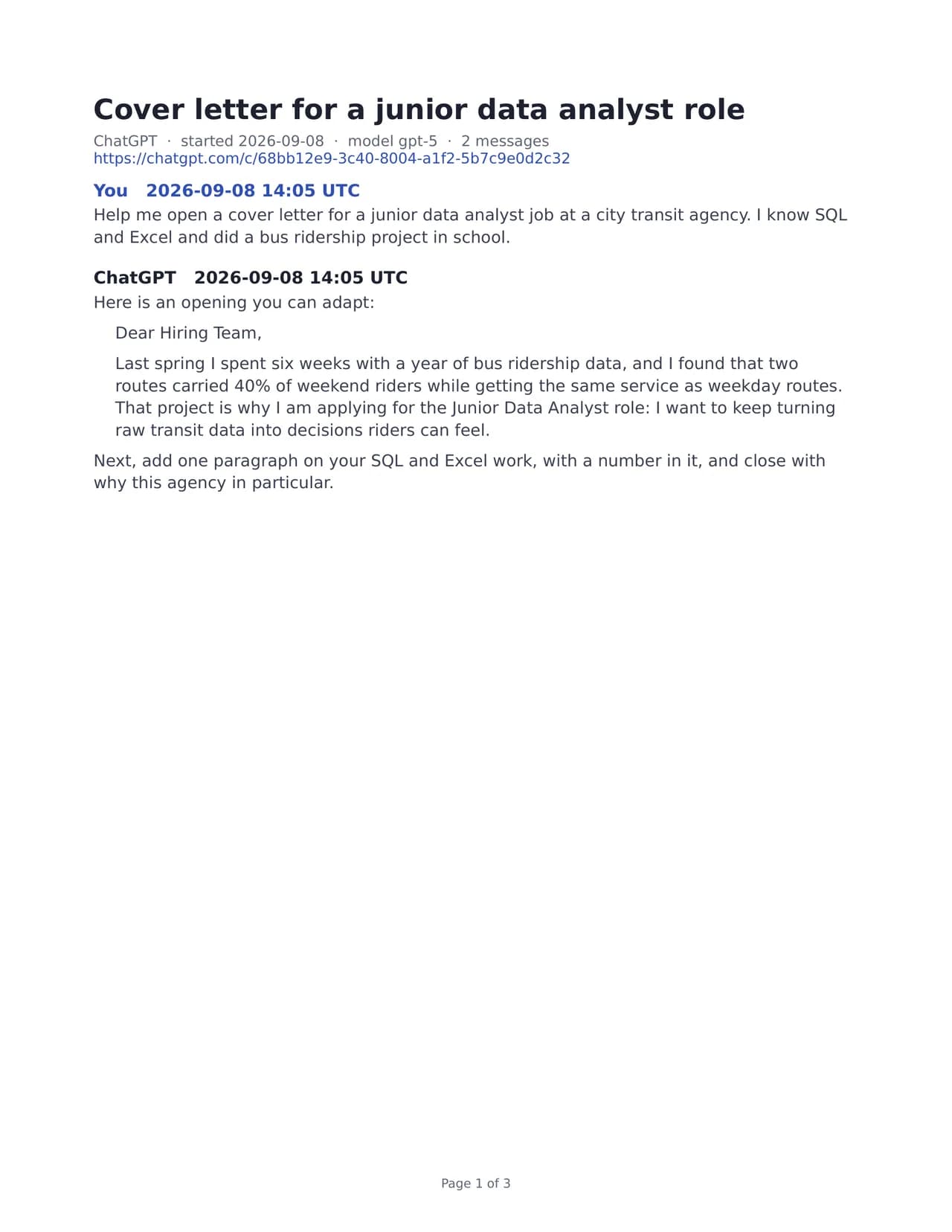
- Test input
- chatgpt-conversations.json
- Output
- chatgpt-chats-3.pdf (PDF)
- Conversations
- 3
- Messages
- 8
- Output size
- 38 KB
- Processing time
- 0.1 s
How we test: the sample files hold ChatGPT and Claude chats with tables, code and lists, and we open every output by hand. More on the about page.
Why export ChatGPT to PDF as one archive
Some people want a record before they close an account. Others switch to another assistant, need proof of past work or simply like an offline copy. In each case, a single PDF is easy to store, back up and open years from now, because almost every device can read it.
The raw export is less friendly. It holds conversations.json, a data file that stores every chat as a tree of messages, plus chat.html, one very long page. Neither one is pleasant to read or print. Our exporter turns that data into a clean document instead.
Getting the full export from ChatGPT
The export is open to Free, Go, Plus and Pro users and to eligible Edu accounts. You must be signed in. Business, Enterprise and ChatGPT for Healthcare workspaces cannot export by themselves, so ask the workspace owner in that case.
After you confirm, ChatGPT sends an email or a text message when the file is ready, which can take up to 7 days. The link expires 24 hours after you get it, so download the zip soon. Also note that an export cannot bring back chats you already deleted.
Big histories: export ChatGPT to PDF in batches
One PDF holds up to 300 conversations, and one export can cover up to 5,000. A single upload carries up to 25 MB of the chats you pick. The zip itself can be much bigger, though, because photos, audio and other files stay on your computer and never reach our server.
If you have more than 300 chats, split the work. The list shows the date of every chat, so tick one year at a time and export each batch to its own PDF. As a result, you end up with a neat set of files such as one for 2024, one for 2025 and one for this year.
Finding your way in a long PDF
A 300-chat file sounds hard to use, but the bookmarks fix that. Every chat gets its own bookmark in the side panel of your PDF reader, so you can scroll the list of titles and jump straight to one. Page numbers run through the whole file.
Inside each chat, messages carry their time stamp in UTC, and the model name appears when the export has it. There is also a link back to the original chat. Meanwhile, the reader's own search box finds any word across all the chats at once.
When this exporter is not the right choice
First, images do not make it into the file: each one shows as "[Image]", and images and canvas documents stay in your original zip. Second, emoji and Chinese, Japanese or Korean text drop out of the PDF, so pick HTML or Word for chats in those scripts.
Finally, this is a one-time export, not a sync. New chats will not appear later on their own, so repeat the export when you want a fresh archive. If you plan to search and link your chats as notes, an Obsidian vault suits that better than a PDF.
Free run vs a full archive
A few free exports each day need no account, but a free run holds only the 10 newest of the chats you tick and adds a one-line footer. For a full history, one credit covers one full export of everything you select, with no footer. The pricing page has the details.
The server reads your chats in memory, turns them into the PDF and then forgets them. We keep a log row with the format, the count and the time, and nothing more.
Limits for a full history export
| Limit | Value |
|---|---|
| Chats in one PDF | Up to 300 |
| Chats in one export | Up to 5,000 |
| Upload size | 25 MB of selected chats |
| Free run | The 10 newest selected chats, with a footer |
| Paid run | One credit per full export, no footer |
| ChatGPT export wait | Up to 7 days, link valid for 24 hours |
Export ChatGPT to PDF FAQ
Can I export ChatGPT to PDF with all my chats in one file?
Yes, up to 300 chats per file. Tick them all after you open the zip, pick PDF and run one export. For more chats, run a few batches.
How long does the ChatGPT data export take?
ChatGPT says it can take up to 7 days. You get an email or a text message when it is ready, and the link works for 24 hours.
What if I have more than 300 chats?
Tick up to 300 at a time, for example one year per batch, and export each batch to its own PDF. One export can cover up to 5,000 chats.
Will deleted chats show up when I export ChatGPT to PDF?
No. The ChatGPT export cannot restore chats you already deleted, so only the chats in your account at export time can reach the PDF.
Why does my free PDF only have 10 chats?
A free run keeps the 10 newest of the chats you select. One credit exports everything you ticked, with no footer.
Does the PDF include images and canvas documents?
No. Images show as "[Image]" in the text, and both images and canvas documents stay in your original export zip.