Export ChatGPT Conversation by Pasting It
To export ChatGPT conversation text right away, open the chat in your browser, select the whole page, copy it, and paste it into the box below. The tool spots the "You said:" and "ChatGPT said:" markers, keeps each turn apart, and saves the chat as Markdown, PDF, Word, HTML or plain text.
By The Chatsheaf team (Product and testing). Last updated .
How to export a ChatGPT conversation by pasting it, step by step
- Open the chat you want at chatgpt.com and scroll up so the whole conversation is loaded.
- Select everything on the page with Ctrl+A (Cmd+A on a Mac), then copy it.
- Paste the text into the box on this page.
- Check the format menu. Markdown is selected, but PDF, Word, HTML and text work too.
- Start the export and download your file.
The first 3 runs each day are free. After that, see the pricing page for packs and plans, or read how we test the tool.
Export ChatGPT conversation tested with a real input
First, we ran our own sample export through this exact tool. The sample follows the real export layout, with chats we wrote ourselves. So the numbers below come straight from that run.
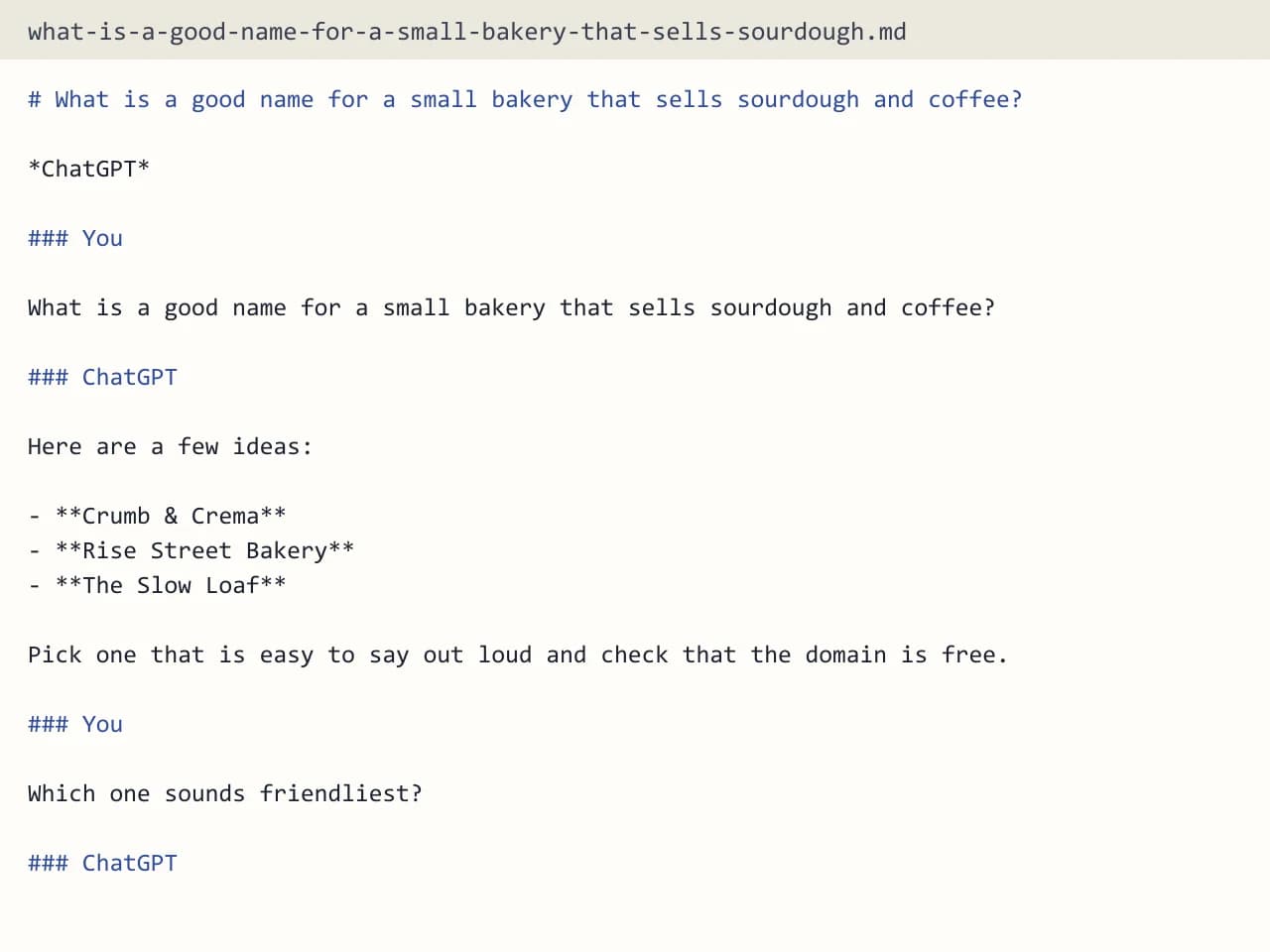
- Test input
- pasted-chatgpt-chat.txt
- Output
- what-is-a-good-name-for-a-small-bakery-that-sells-sourdough.md (Markdown (.md))
- Conversations
- 1
- Messages
- 4
- Output size
- 1 KB
- Processing time
- 0.0 s
How we test: the sample files hold ChatGPT and Claude chats with tables, code and lists, and we open every output by hand. More on the about page.
Export ChatGPT conversation text without waiting for an email
The official export sends a zip of your whole account, and that can take up to 7 days to show up. That is fine for a backup. However, it is far too slow when you just want to save one useful chat before a meeting.
Pasting skips the wait. You copy the chat straight from the page, so the text is ready in seconds. Then the tool turns it into a proper file, with your questions and the answers clearly split.
How the paste detection keeps turns apart
When you copy a ChatGPT page, the text includes small labels before each turn: "You said:" before your message and "ChatGPT said:" before each answer. Our exporter looks for these markers and uses them to split the conversation correctly.
It also understands "User:", "Assistant:" and "Claude:" labels. So a transcript from Claude, or one you labeled by hand, comes out with the same clean structure. For example, a pasted Claude chat with "User:" and "Claude:" lines becomes a Markdown file with one section per message.
Which format to pick for one chat
Markdown keeps headings, lists, tables and code blocks as plain text you can edit anywhere. That makes it the easy choice for notes apps or a project folder. In contrast, PDF is the safer pick when you want to send the chat to someone who should not edit it.
Word suits a chat you plan to polish into a report, since every message gets a heading. Meanwhile, the HTML page works offline in any browser, and plain text is handy for pasting into an email. Note that the PDF font covers Latin, Greek and Cyrillic, so emoji and CJK characters drop out of a PDF, while the other formats keep every character.
Pasting versus the full data export
Each route has its strengths. Pasting is quick and works for one chat at a time. The data export, on the other hand, carries details that a copied page may not, such as a timestamp per message, the model name and a link to the original chat.
So if you want many chats, or you care about dates, request the zip in Settings and Data controls instead. Then drop it on our exporter and tick the chats you want. Both routes count as one export each, and you get a few free exports every day.
When this exporter is not the right choice
If the chat is mostly images, a text export will not do it justice, because pictures are not part of the result. Likewise, ChatGPT share links do not work here, so open the chat and copy its text. Finally, if you want every new chat saved as you go, look for a browser extension, since this tool does one export at a time.
Labels the paste box recognizes
| Label in the pasted text | Treated as |
|---|---|
| You said: | Your message (ChatGPT page copy) |
| ChatGPT said: | The assistant reply (ChatGPT page copy) |
| User: | Your message |
| Assistant: | The assistant reply |
| Claude: | The assistant reply |
Export ChatGPT conversation FAQ
How do I export a single ChatGPT conversation?
Copy the whole chat from your browser and paste it here, then choose a format. No zip or account is needed.
Can I export ChatGPT conversation text from my phone?
If your phone browser lets you select and copy the chat, you can paste it into this page the same way.
Why does my pasted chat show as one long block?
The tool needs the turn labels to split messages. Make sure the copy includes "You said:" and "ChatGPT said:", or add "User:" and "Assistant:" yourself.
Do code blocks survive the paste?
Code, tables and lists carry over as long as they were part of the copied text. Markdown output keeps them easy to read.
Is the pasted chat saved anywhere?
No. The server reads it in memory, builds your file and forgets it. It only keeps a log row with format, count and time.