ChatGPT to Obsidian: Turn Your Chats Into a Vault
To move ChatGPT to Obsidian, open your ChatGPT export zip here, tick the chats and pick Obsidian vault. You get a .zip with one note per chat in AI Chats/ChatGPT/<year>/, YAML properties at the top of every note and an index note that links each chat, grouped by month. Unzip it into your vault and start reading.
By The Chatsheaf team (Product and testing). Last updated .
ZIP, JSON, TXT or MD. The zip is opened on your device; photos in it are never uploaded.
How to bring ChatGPT to Obsidian, step by step
- Request your ChatGPT data under Settings, Data controls, Export data, then Export and Confirm export.
- Download the zip from the email link within 24 hours.
- Drop the zip on this page, tick the chats and pick Obsidian vault under Save as.
- Unzip the download and move its contents into your Obsidian vault folder.
- Open Obsidian and start from the AI chat index note.
The first 3 runs each day are free. After that, see the pricing page for packs and plans, or read how we test the tool.
ChatGPT to Obsidian tested with a real input
First, we ran our own sample export through this exact tool. The sample follows the real export layout, with chats we wrote ourselves. So the numbers below come straight from that run.
- Test input
- chatgpt-conversations.json
- Output
- chatgpt-chats-3-obsidian.zip (Obsidian vault)
- Conversations
- 3
- Messages
- 8
- Output size
- 3 KB
- Processing time
- 0.0 s
How we test: the sample files hold ChatGPT and Claude chats with tables, code and lists, and we open every output by hand. More on the about page.
What the ChatGPT to Obsidian vault looks like
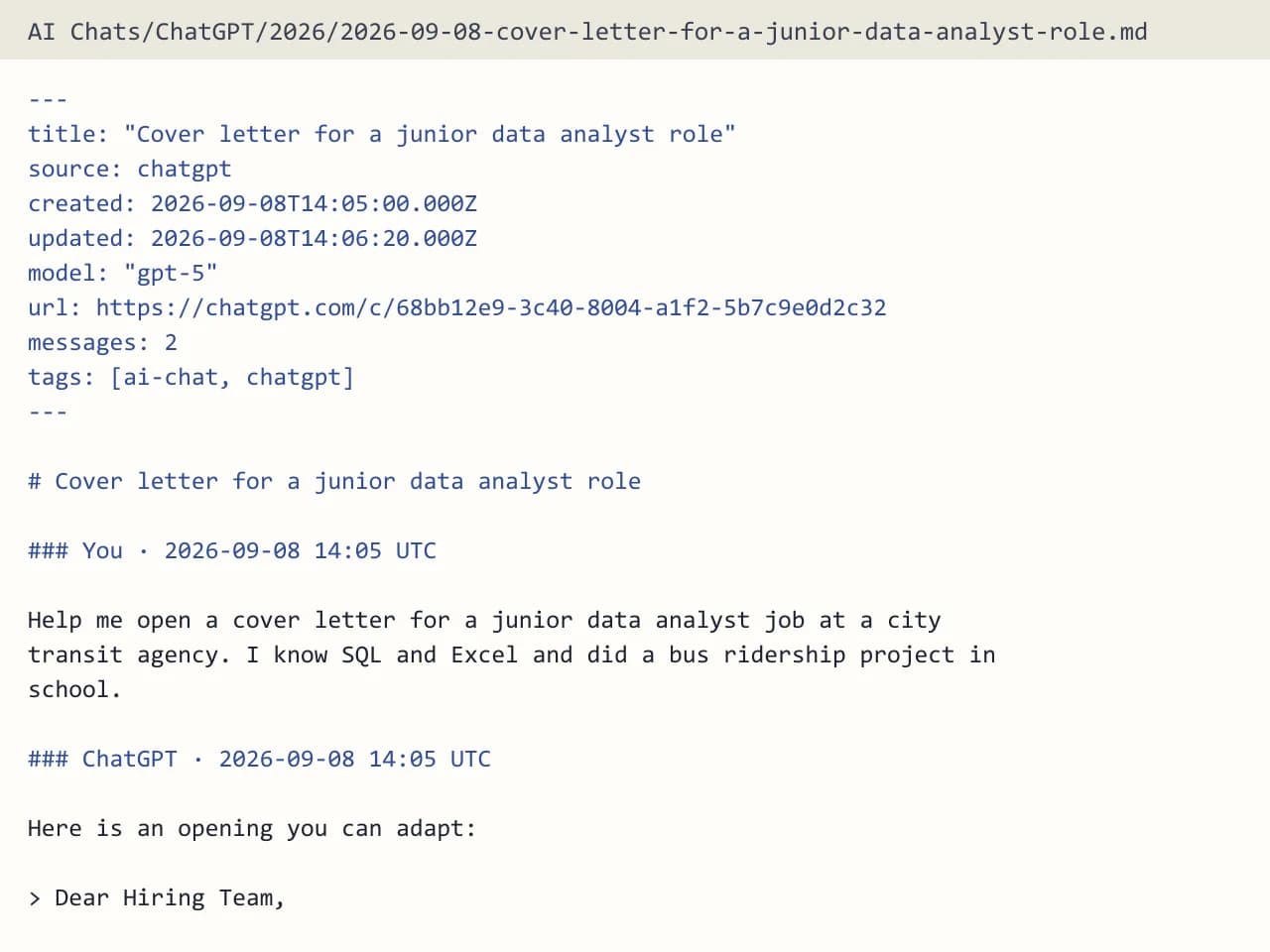
The download is a .zip with a folder called AI Chats. Inside it, chats sit in a ChatGPT folder and then in one folder per year, so a chat from March 2025 lands in AI Chats/ChatGPT/2025. A Claude export goes into a Claude folder next to it, which keeps both assistants apart.
The vault also holds a note called AI chat index. It lists every chat as a [[wikilink]], grouped by month. So you can open one note, scan a month and click straight into any conversation. The links also show up in the graph and the backlinks panel like any other link.
Properties on every note
First, each note starts with a YAML block that Obsidian shows as properties. The fields are title, source, created, updated, model, url, messages and tags. Because these are real properties, you can sort, filter and search on them with the tools Obsidian already has.
For example, search for notes where the model is a certain one, or sort by the messages field to find your longest chats. The url field links back to the original chat, so you can still open it in ChatGPT later.
Why ChatGPT chats belong in Obsidian
Most good ideas from a chat get lost in a long sidebar. In a vault, however, they sit next to your own notes. You can link a coding chat to the project note it helped with, quote an answer in a draft or tag a research chat for a later review.
The notes are plain Markdown, so they stay yours. They keep every character, code blocks, tables and lists, and each message keeps its time stamp in UTC. For ChatGPT, the notes follow the branch you see in the chat window, and citation markers like 【4†source】 are removed.
When this exporter is not the right choice
This is a one-time export, not a plugin or a sync. New chats will not flow into your vault on their own, so run a fresh export when you want the latest ones. If you need automatic sync, look for an Obsidian plugin instead.
Also, images show as "[Image]" in the notes, and the pictures stay in your original zip. If you do not use Obsidian at all, plain Markdown files are the simpler pick.
Free runs, limits and privacy
You get a few free exports each day without an account. A free run holds the 10 newest of the chats you tick, which is enough to test the vault layout. One credit exports everything you select, up to 5,000 conversations, from up to 25 MB of selected chats.
The server reads the chats in memory, builds the vault and forgets it. We keep a log row with the format, the count and the time, and that is all.
ChatGPT to Obsidian vault layout
| Part | What it holds |
|---|---|
| Folders | AI Chats/ChatGPT/<year>/ (Claude chats in AI Chats/Claude/<year>/) |
| Notes | One Markdown note per chat |
| Properties | title, source, created, updated, model, url, messages, tags |
| Index note | AI chat index, with [[wikilinks]] grouped by month |
| Per message | Time stamp in UTC |
| Images | Shown as [Image], originals stay in the zip |
ChatGPT to Obsidian FAQ
How do I import ChatGPT to Obsidian?
Export your data from ChatGPT, open the zip here and pick Obsidian vault. Then unzip the download and move its contents into your vault folder.
Does Obsidian read the properties on each note?
Yes. The YAML block at the top uses the format Obsidian calls properties, so the fields show up in the properties view and work in search.
Can I put Claude and ChatGPT chats in the same vault?
Yes. Claude chats go into AI Chats/Claude and ChatGPT chats into AI Chats/ChatGPT, each sorted by year.
Will new ChatGPT chats sync to my vault?
No. The export is a one-time snapshot. Run a new export whenever you want your latest chats as notes.
Do I need a plugin for the ChatGPT to Obsidian notes?
No. The notes use plain Markdown, YAML properties and [[wikilinks]], which Obsidian reads with no extra plugins.