Export ChatGPT Conversation History as a Browsable Archive
To export ChatGPT conversation history as something you can browse, request the data zip under Settings, Data controls, Export. Then open the zip here and choose HTML page. You get one self-contained file with a table of contents that works offline, in light or dark mode, with each chat in order.
By The Chatsheaf team (Product and testing). Last updated .
ZIP, JSON, TXT or MD. The zip is opened on your device; photos in it are never uploaded.
How to export ChatGPT conversation history to HTML, step by step
- Request your data in ChatGPT: Settings, Data controls, Export, then Confirm export.
- Download the zip from the email or SMS within 24 hours, signed in to the same account.
- Drop the zip on this page and select all the chats, or only a year or a topic.
- Keep HTML page as the format and start the export.
- Open the downloaded file in any browser and jump between chats from the table of contents.
The first 3 runs each day are free. After that, see the pricing page for packs and plans, or read how we test the tool.
Export ChatGPT conversation history tested with a real input
First, we ran our own sample export through this exact tool. The sample follows the real export layout, with chats we wrote ourselves. So the numbers below come straight from that run.
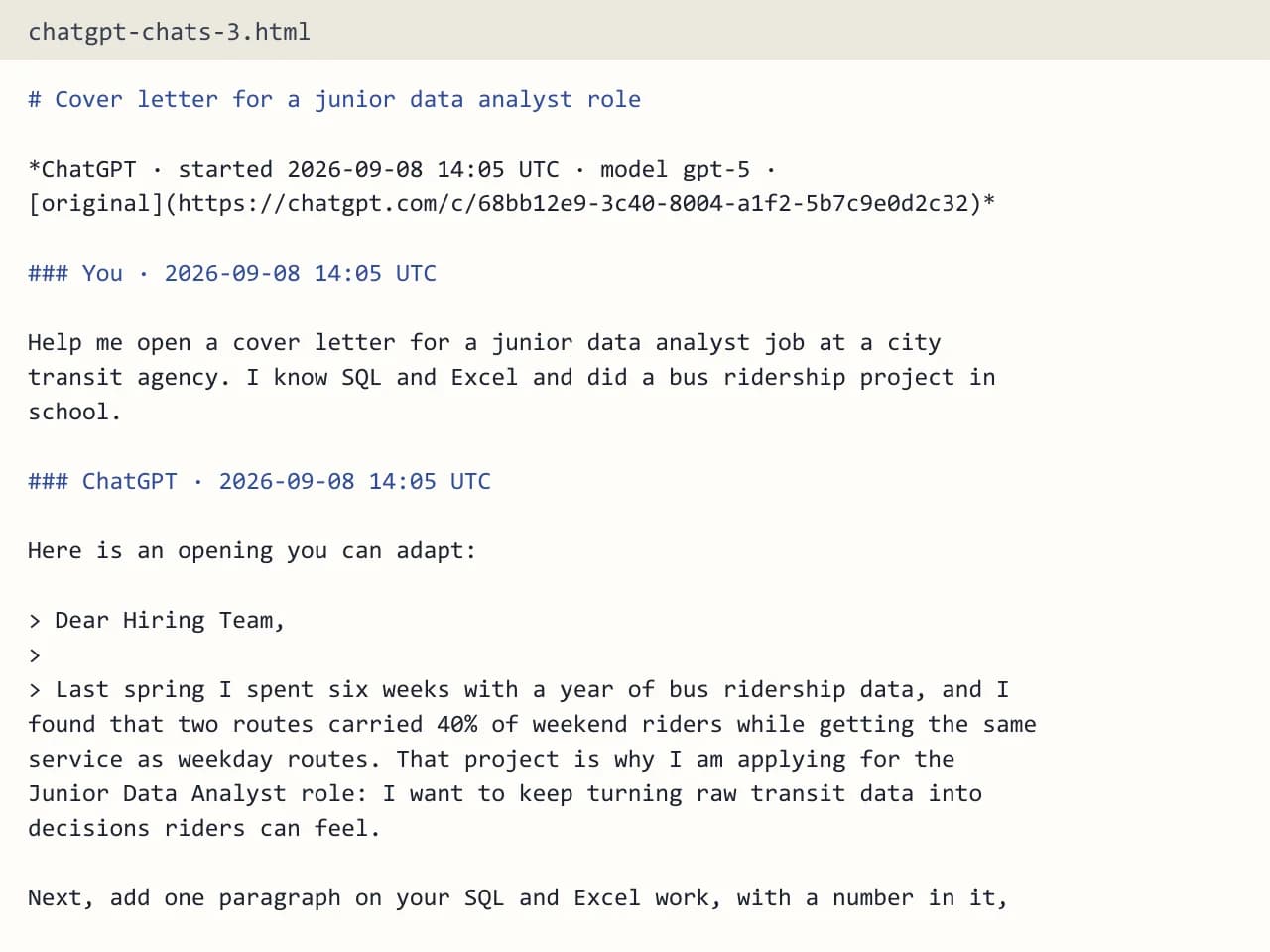
- Test input
- chatgpt-conversations.json
- Output
- chatgpt-chats-3.html (HTML page)
- Conversations
- 3
- Messages
- 8
- Output size
- 7 KB
- Processing time
- 0.0 s
How we test: the sample files hold ChatGPT and Claude chats with tables, code and lists, and we open every output by hand. More on the about page.
Why export ChatGPT conversation history to HTML
An archive is only useful if you can open it years from now. A single HTML file needs nothing but a browser, which every computer and phone already has. It also works offline, so you can read old chats on a plane or after you cancel a subscription.
The page our exporter builds starts with a table of contents. Each entry jumps to one conversation, so a long history stays easy to scan. Furthermore, the page comes with light and dark styles, which helps if you read late at night. The same route also works for a Claude export zip, so both histories can live side by side.
How this differs from the chat.html file OpenAI sends
The ChatGPT zip already includes a file called chat.html. However, it is one long page with every chat stacked together. With a big history, it becomes slow to scroll, and you cannot choose which chats to include.
Our version starts from conversations.json instead. Since that file stores each chat as a tree of messages, the tool follows the branch you saw on screen and drops edited or abandoned branches. You also pick exactly which chats go in. For example, you could build one page for work chats and a second page for personal ones.
What your archive keeps from each chat
Each conversation shows its title, your messages and the replies in order, a UTC timestamp per message, the model name when the export lists it, and a link back to the original chat. Code blocks, tables, lists and headings render as they should. In addition, HTML keeps every character, including emoji and Chinese, Japanese or Korean text.
Still, some content stays behind. Images show up as "[Image]" because the tool skips files inside the zip. Likewise, hidden system messages, tool calls and model reasoning are not included, so hold on to the original zip as well.
Splitting a large history into several pages
One export can cover up to 5,000 conversations, and one upload can carry 25 MB of selected chats. So if your account is very old, it often makes sense to split the work. Try one HTML page per year, which also makes each file quicker to open.
Free runs keep the 10 newest chats of your selection and add a one-line footer to the page. A paid credit exports everything you ticked without the footer. You still get a few free exports each day without an account.
When this exporter is not the right choice
If your goal is to search the raw data with code, you may be better off keeping conversations.json as it is. Likewise, if you need images and canvas documents next to the text, this archive will not hold them. Finally, the tool cannot export Gemini, Grok, Copilot or DeepSeek history, and it does not sync new chats automatically.
Export ChatGPT conversation history: our HTML vs chat.html
| Feature | Our HTML page |
|---|---|
| Chats included | Only the ones you tick |
| Navigation | Table of contents with a link per chat |
| Edited branches | Left out, visible branch only |
| Offline use | Yes, one self-contained file |
| Theme | Light and dark |
| Emoji and CJK text | Kept |
Export ChatGPT conversation history FAQ
Can I export ChatGPT conversation history without the zip?
For one chat, yes: paste it into the text box. For the full history, you need the zip that ChatGPT emails you.
Does the HTML file need an internet connection?
No. Everything sits inside the one file, so it opens offline in any browser.
Will my old deleted chats show up?
No. An export cannot restore chats that were already deleted, so only chats still in your account appear.
Can I print the HTML archive?
You can print it from the browser. However, the PDF format gives you page numbers, a new page per chat and bookmarks, so it suits printing better.
Are the timestamps in my local time?
Timestamps are shown in UTC, one per message, so they stay consistent no matter where you open the file.